Restoring from Backups
- Log into the Backrest console from your device (http://localhost:9898/ if local).
- From the left sidebar, navigate to Plans -> your plan.
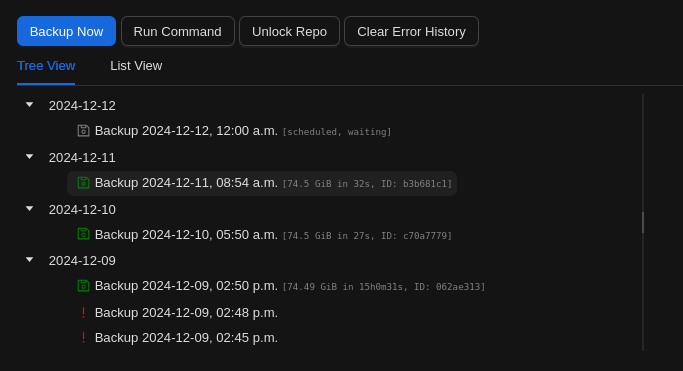
- Under the Tree View of snapshots, select an appropriate backup to restore from, and click on it.
Tip
Try to think of the most recent time before your file or folder was corrupted or missing. If you realize afterwards that you were incorrect, try an earlier one.
- In the right-side pane, click on Snapshot Browser, which will show the file tree.
- Click on the arrow to the left of the displayed directory/folder to expand it, and then keep doing so down the tree until you find the item you’d like to restore.
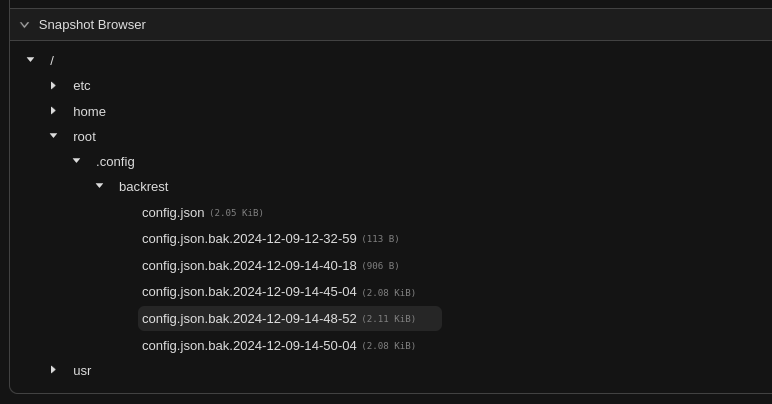
- Hover over it, all way to the right, until you’re over the little menu icon.
- You should then see a menu with options Info and Restore to path.
- Click on Restore to path. You should then see the following pop-up.
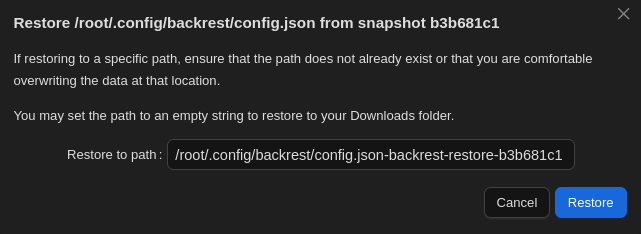
- Enter the path where you’d like the item restored. The original location should be the default, you can enter another location, or you can leave the field blank to place it in your Downloads folder.
Caution
The item being restored will overwrite whatever you have in the chosen location with the same name. If you’d like to keep that copy, place the item elsewhere.
- Review the item locally. If it doesn’t contain what you want, try again with another snapshot that will likely contain what you’re looking for.