Repository Instance Configuration
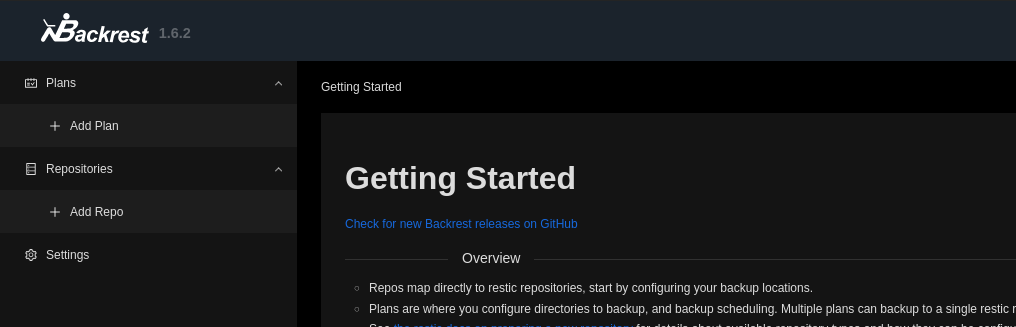
On the left sidebar, click on Repositories -> Add Repo.
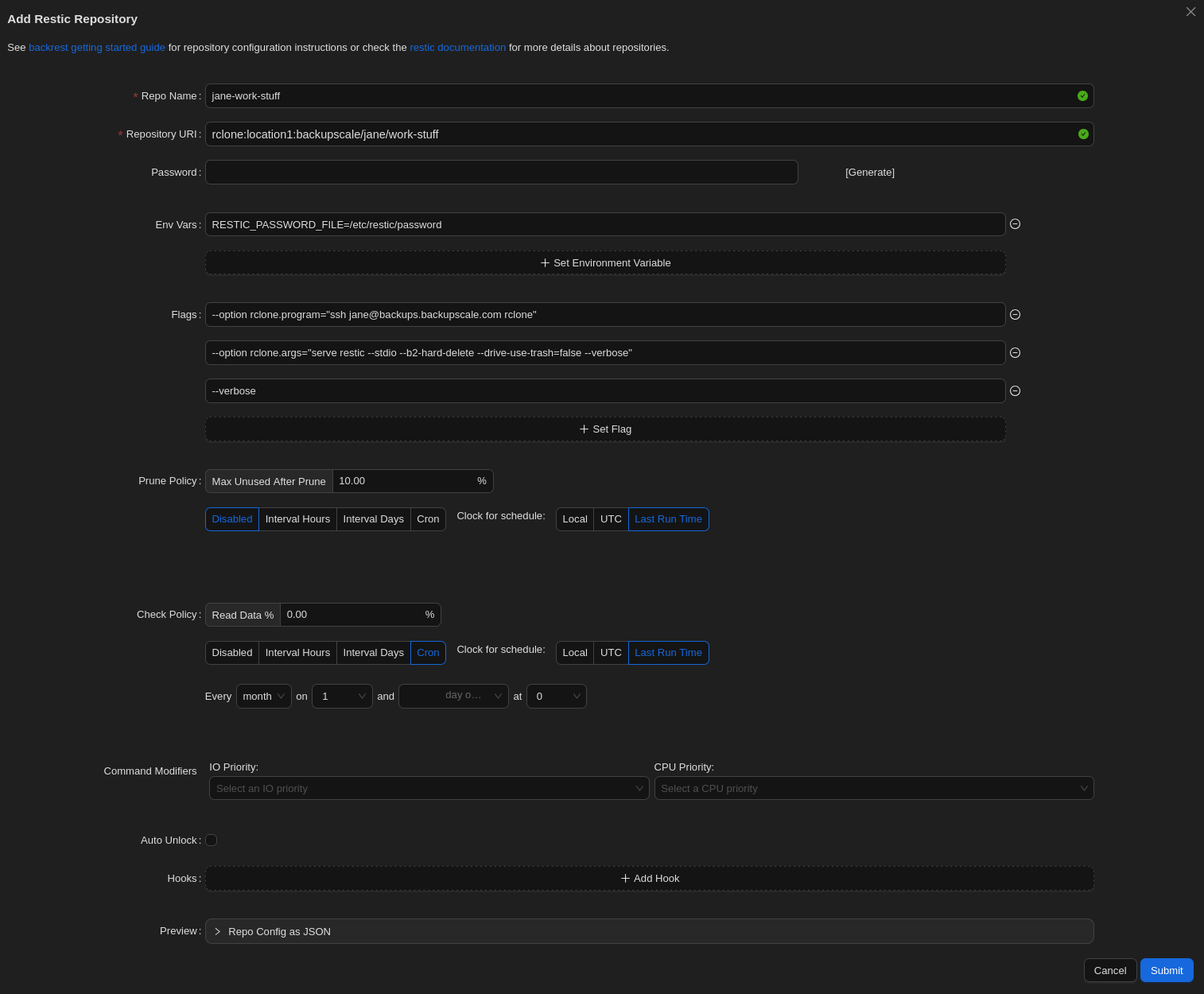
Then, fill out the form. There’s an image of a filled form following the steps below.
Form Steps
- Repo Name: Enter whatever you’d like here; this is for identifying your repository in this user interface.
- Repository URI: Enter the following, with the region (only
europeis supported currently), your username for USER_NAME, and the ID you’d like for your repository for REPOSITORY_ID (but note the Caution below).rclone:europe:backupscale/USER_NAME/REPOSITORY_ID
Caution
Repository IDs must be between 3 and 63 characters (inclusive). They can contain lowercase letters, numbers and dashes (but not at the beginning or end).
- Password: Leave this field blank. We don’t need to generate one here because we’ll be using the passphrase we generated during the initial set-up.
- Env Vars: Enter the following to set up your environment with your passphrase.
RESTIC_PASSWORD_FILE=/etc/restic/password
- Flags: Here are the settings for working with BackUpScale repositories. Again, replace User_NAME with your username.
--option rclone.program="ssh USER_NAME@backups.backupscale.com rclone"--option rclone.args="serve restic --stdio --b2-hard-delete --drive-use-trash=false --verbose"--verbose
Info
Rclone is the tool we use to marshal your encrypted files to and from our cloud storage service.
- Prune Policy: Hit the Disabled button. This option is for removing no-longer-needed data from your repository, but we can’t automate this here because your repositories are normally in append-only mode to enhance security. Therefore, data cannot be removed with this method. To do so, see Removing Snapshots for information on how to do it elsewhere.
- Check Policy: This isn’t required, but if you’d like to verify the integrity of your repository periodically, you can enable this by setting it to something higher than 0%. However, this this is a resource-intensive operation so we don’t recommend checking more than 10% at once.
- Command Modifiers: Feel free to set these to something other than the defaults to match your resource management requirements.
- Auto Unlock: Leave this disabled.
Caution
Enabling this could corrupt your backup repository. Leave it off unless you really know what you’re doing.
- Hooks: You can hook into operations run here. See Hook Details for more information.
- Preview: This is simply for reviewing how the the above configuration will be stored, which can be helpful for automation.
- Hit the Submit button to save the form.
Example of a filled form