Subsections of Backup Source Configuration

Management Console Configuration

  1. Point your browser at the Backrest console. This will typically be http://localhost:9898/ if you installed locally by following the default installation instructions.
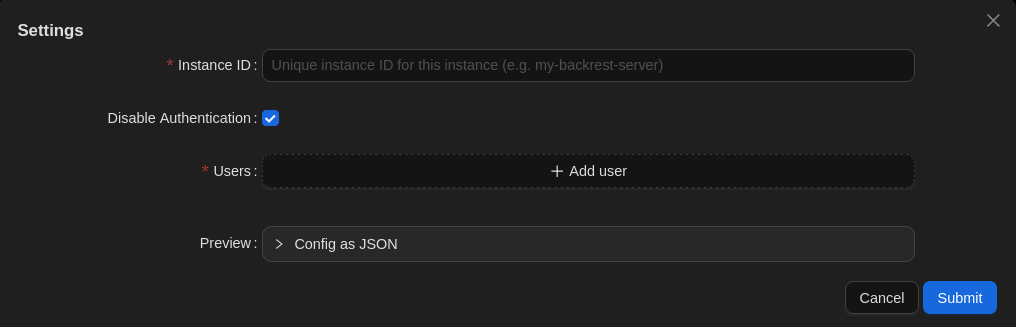
  2. You should then see the following pop-up dialog box: Getting Started pop-up dialog box Getting Started pop-up dialog box
  3. Enter an Instance ID: The instance ID is a unique identifier for your Backrest instance. This is used to tag snapshots created by Backrest so that you can distinguish them from snapshots created by other instances. This is useful if you have multiple Backrest instances backing up to the same repo. It cannot be changed after initial configuration as it is stored in your snapshots. Choose a value carefully.
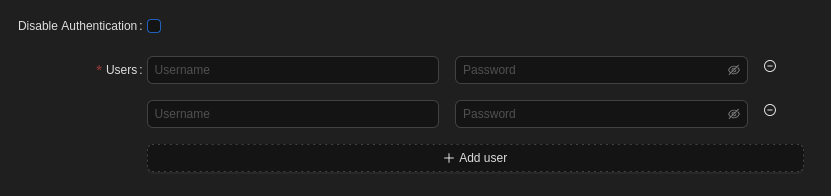
  4. Disable Authentication: If you’d like all users of this device administer your configuration (e.g. you’re the only user), you can leave this box checked because it can only be accessed from the device itself. Otherwise (e.g. you have other users that should not be able to alter settings), uncheck it.
  5. Users: Add credentials (username & password) for each administrator, including yourself, if you enabled authentication. Add Users section of form Add Users section of form
  6. Hit the Submit button to save the above settings.
Dec 11, 2024

Repository Instance Configuration

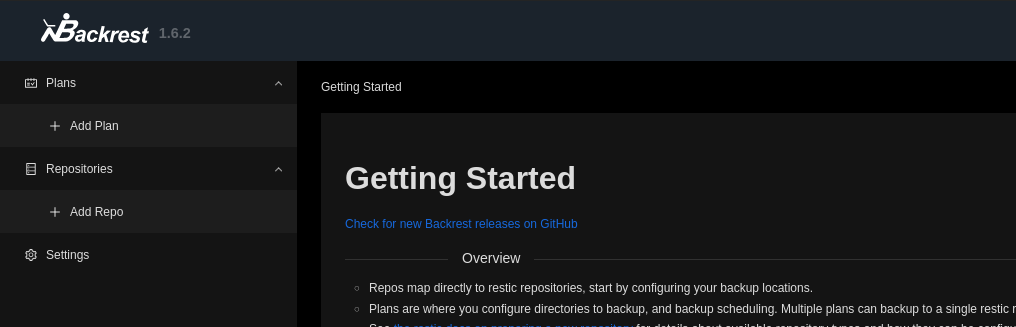
On the left sidebar, click on Repositories -> Add Repo. Repositories: Add Repo Repositories: Add Repo
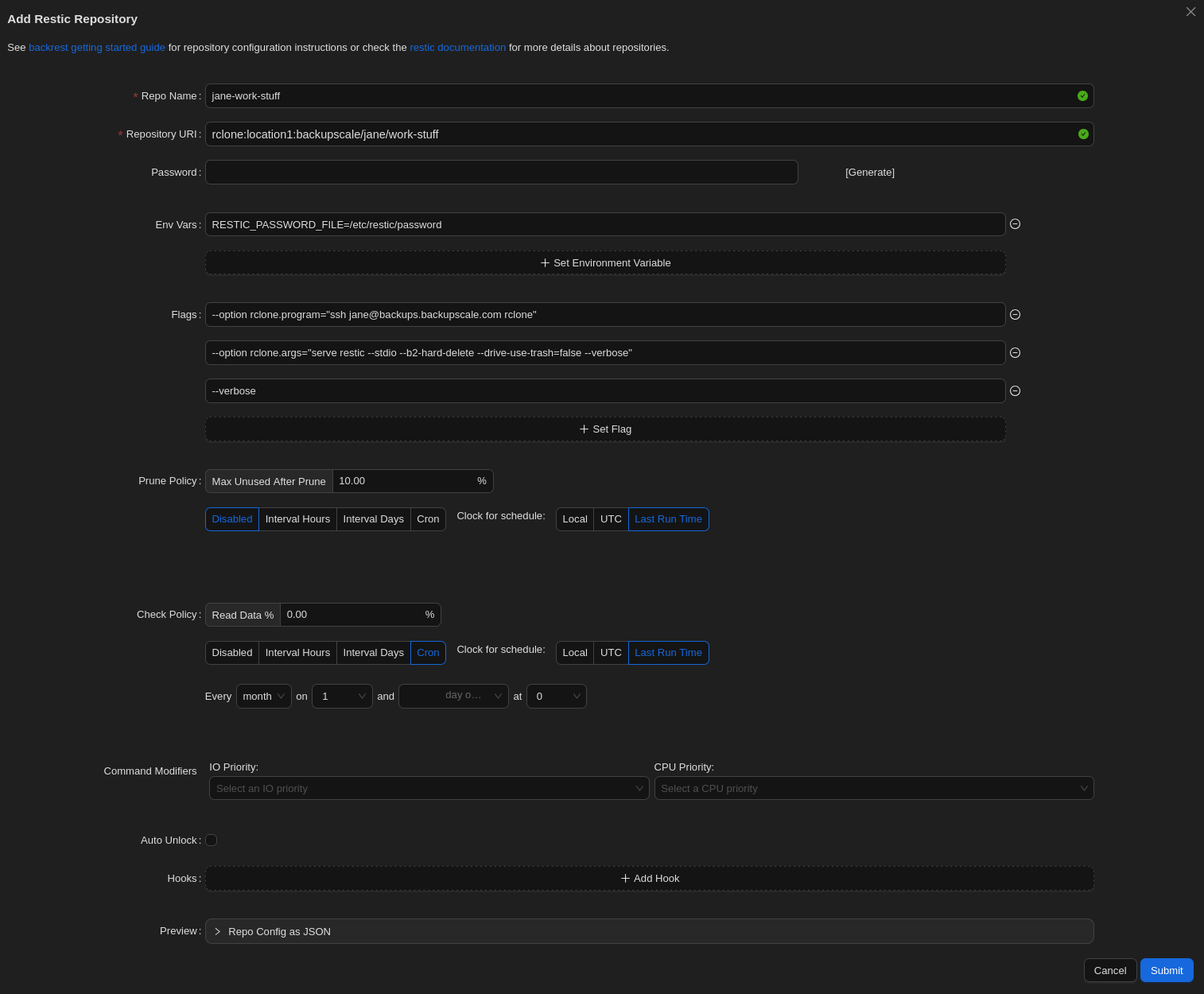
Then, fill out the form. There’s an image of a filled form following the steps below.

Form Steps

  1. Repo Name: Enter whatever you’d like here; this is for identifying your repository in this user interface.
  2. Repository URI: Enter the following, with the region (only europe is supported currently), your username for USER_NAME, and the ID you’d like for your repository for REPOSITORY_ID (but note the Caution below).
    • rclone:europe:backupscale/USER_NAME/REPOSITORY_ID
Caution

Repository IDs must be between 3 and 63 characters (inclusive). They can contain lowercase letters, numbers and dashes (but not at the beginning or end).

  1. Password: Leave this field blank. We don’t need to generate one here because we’ll be using the passphrase we generated during the initial set-up.
  2. Env Vars: Enter the following to set up your environment with your passphrase.
    • RESTIC_PASSWORD_FILE=/etc/restic/password
  3. Flags: Here are the settings for working with BackUpScale repositories. Again, replace User_NAME with your username.
    • --option rclone.program="ssh USER_NAME@backups.backupscale.com rclone"
    • --option rclone.args="serve restic --stdio --b2-hard-delete --drive-use-trash=false --verbose"
    • --verbose
Info

Rclone is the tool we use to marshal your encrypted files to and from our cloud storage service.

  1. Prune Policy: Hit the Disabled button. This option is for removing no-longer-needed data from your repository, but we can’t automate this here because your repositories are normally in append-only mode to enhance security. Therefore, data cannot be removed with this method. To do so, see Removing Snapshots for information on how to do it elsewhere.
  2. Check Policy: This isn’t required, but if you’d like to verify the integrity of your repository periodically, you can enable this by setting it to something higher than 0%. However, this this is a resource-intensive operation so we don’t recommend checking more than 10% at once.
  3. Command Modifiers: Feel free to set these to something other than the defaults to match your resource management requirements.
  4. Auto Unlock: Leave this disabled.
Caution

Enabling this could corrupt your backup repository. Leave it off unless you really know what you’re doing.
  1. Hooks: You can hook into operations run here. See Hook Details for more information.
  2. Preview: This is simply for reviewing how the the above configuration will be stored, which can be helpful for automation.
  3. Hit the Submit button to save the form.

Example of a filled form

Exmaple repository configuration Exmaple repository configuration

Dec 11, 2024

Repository Scheduling Configuration

  1. Plan Name: Enter whatever you’d like here; this is for identifying your plan in this user interface.
  2. Repository: Select one of the repositories you created in the previous section.
  3. Paths: Enter the paths on your device that you’d like backed up.
  4. Excludes: Case-sensitive paths to exclude from your backups that are contained within the above paths. See the Restic documentation for details.
  5. Excludes (Case Insensitive): Same as above, but the paths aren’t case sensitive. See the Restic documentation for details.
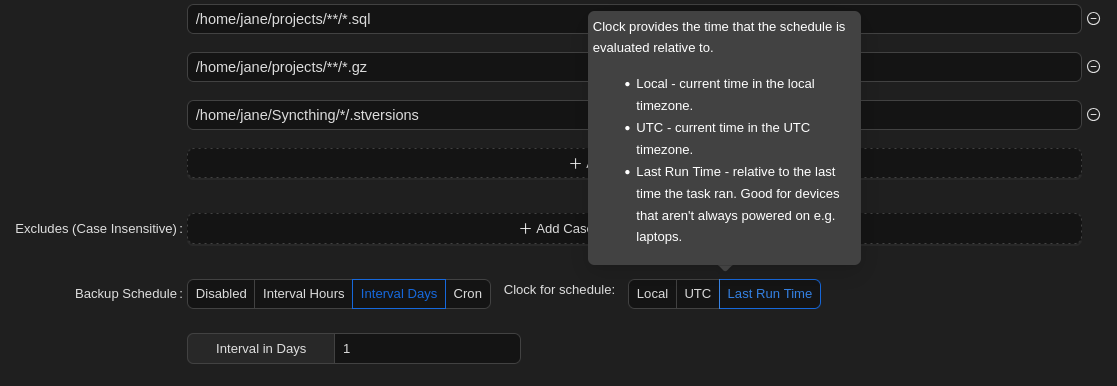
  6. Backup Schedule: The backup schedule. You can hover over each option for in-line help. Backup schedule in-line help Backup schedule in-line help
  7. Backup Flags: Set any options you’d like to add to the backup command. For example, we recommend not creating new snapshots if the files haven’t changed:
    • --skip-if-unchanged
  8. Retention Policy: Set this to None because we’ll normally be working with append-only repositories, which don’t allow marking snapshot removals. Instead, we’ll handle this via out-of-band operations, where we temporarily disable append-only mode.
  9. Hooks: You can hook into operations run here. See Hook Details for more information.
  10. Preview: This is simply for reviewing how the the above configuration will be stored, which can be helpful for automation.
  11. Hit the Submit button to save the form.
  12. After your Plan has been created, while on the Plan, hit the Backup Now button to start your first backup and test you configuration.
Note

If you’re backing up lots of data (either lots of files and/or big files), it may take a while for your backup task to complete. After your first backup, however, there will be fewer changes to upload so backup operations will be quicker.