BackUpScale Documentation

About this site

This is the documentation site for BackUpScale, the automated client-side encrypted off-site backup service with ransomware protection.

It was developed using the principles of the Diataxis Framework, to maximize its usefulness for people at all stages of use.

Sections

  • I am just getting started and want to start using it… Getting Started
  • I already have BackUpScale installed and I want to… Ongoing Operations
  • I want to know more about the details of how you have implemented this solution, and understand how it works.

There is also a technical backgrounder available on backupscale.com.

Change requests

Change requests are welcome.

If you have any suggestions for improvements, please either (in order of our preference):

  1. Click on the Edit (pencil) icon on the top-right of any page to submit a merge request (MR) with your suggested changes.
  2. Search for the same issue in our issues queue, and hit the 👍 button on it if it’s the same one after reviewing it. If you don’t see it, create a new issue.
  3. Reach out to us using one of the methods on our community page.
Dec 11, 2024

Subsections of BackUpScale Documentation

Subsections of How To Guides

Getting Started

Getting Started

  1. Register for an account to use the service.
  2. Prepare for setting up the devices you’d like backed up, your backup sources.
  3. Install the software needed to run on your backup sources.
  4. Configure backup sources.
Dec 11, 2024

Subsections of Getting Started

Registration

In order to use the service, you’ll need a subscription to it, either via the hosted SaaS version at backupscale.com or an account set up with your organization for the corporate installation (self-hosted).

  • For the SaaS version, sign up on the BackUpScale dashboard site, and then select and purchase a subscription plan.
  • For the Enterprise (self-hosted) version, talk to the folks managing it for your organization.

In either case, you’ll need:

  • Your username obtained through registration.
  • One or more backup sources. These are the devices that that you’d like backed up.
Dec 11, 2024

Backup Source Requirements

You can have as many backup sources as you’d like with no additional cost. For each one you’d like to back up, ensure you are prepared to configure them with the steps below.

Generate an SSH key pair

Each backup source must have a Secure Shell (SSH) key pair owned by the Administrator or superuser root used for connecting to the backup service. The public keys must be provided to the service before you start running backups, ideally as part of registration. You can use the same key pair for all of your backup sources, different key pairs for each, or some other combination. As long as each device can connect the the backup serivce over SSH using one of your private keys, you’re good to go.

For the purposes of this exercise, we’re assuming that you don’t already have a key pair to use. If you do, you can skip these steps.

  1. Ensure that you have Administrator/root access on your device.
  2. Start a terminal session as that user (or if you can, prefix the following command with sudo as it’s safer).
  3. Generate a key pair:
    • ssh-keygen -t ed25519 -C "device1"
  4. When asked where to save the key, the default location should be fine.
  5. When asked for a passphrase, DO NOT enter one; leave it blank. Password-protected keys will not work with the automation.
  6. Keep the generated public key, typically id_ed25519.pub, handy as you’ll need to provide it when setting up your account.

You can now either copy this key pair to the same location on your other devices, or generate other key pairs for them the same way.

Generate and Store a Passphrase

  1. Your backups are encrypted using a passphrase which you will select and enter during the configuration stage.
  2. This passphrase cannot be recovered by the system if you lose it! It is required for restoring your backups. You must store it in a safe place!
Tip

If you have an organizational or personal vault that’s encrypted (if digital) or secure physically (if not, like an actual safe), that would be the best place to store this.

As most folks aren’t going to bother with a physical safe, either one they control or a safety deposit box at the bank, the next best option is a digital vault (which will also generate passwords for you), ideally controlled by you. A good example of this is KeePassXC. Otherwise, you can use one of several encrypted password management services, for example:

We’re not endorsing these, but are providing them as options you can look into yourself. You’re on your own if tney cause any problems for you.

Caution
  1. Don’t forget or lose your credentials or access to your vault.
  2. Keep a backup of your secrets just in case something happens to the physical location or digital service.
Info

Yes, we take backups very seriously.

Dec 11, 2024

Backup Source Installation

Add your devices to the backup network

Requirements

  • Confirmation that your account has been set up
  • The administrator password for your logged in user (needed for running the playbook)
  • Your generated passphrase you’ve prepared

Installation

Determine how you’d like to install the necessary software on your devices. All of the software you need to install has publicly available code (open source) so it can be audited if necessary. For details, see Installation Software.

We provide an Ansible role and default playbook for automatic configuration of devices, with this repository actually structured as an Ansible collection containing both. If your organization uses another automated provisioning tool enabling infrastructure as code (IaC) such as Salt, Chef or Puppet, feel free to write an equivalent script (and then provide it to us so that we can share it with others). If you prefer to configure your backup sources manually (not recommended, but necessary if you have different set-up requirements, such as running the Backrest console in a Docker container instead of locally), you can review the included role to follow and possibly modify those steps.

Using our Ansible role

For more information on what our Ansible role actually does on your device, please review the role overview.

For a single backup source, run locally on the backup source or remotely targetting it
  1. Install Ansible by running the following command:
    • sudo apt install ansible
  2. Add a directory for Ansible collections:
    • mkdir --parents ~/.ansible/collections
  3. Clone this repository into your collections directory:
    • git clone https://gitlab.com/backupscale/customer-tools.git ~/.ansible/collections/customer-tools
  4. Run the Ansible playbook.
    • Locally: ansible-playbook --inventory localhost, --ask-become-pass --connection=local ~/.ansible/collections/customer-tools/playbooks/configure-backup-sources.yml
    • Remotely: ansible-playbook --inventory REMOTE_HOSTNAME, --ask-become-pass ~/.ansible/collections/customer-tools/playbooks/configure-backup-sources.yml
  5. When it prompts you for a BECOME password, enter your own password to get sudo access so that some tasks can run with administrator permissions (only the ones that need them).
Multiple remote targets, non-local

For multiple targets that aren’t local, you’d instead run something like this, or provide an inventory file:

  1. ansible-playbook --inventory server1,server2,server3 /path/to/this/repository/playbooks/configure-backup-sources.yml
  2. When it prompts you for a BECOME password, enter your own password to get sudo access so that some tasks can run with administrator permissions (only the ones that need them).

Next Steps

We’re now ready to move onto configuration.

Dec 11, 2024

Subsections of Backup Source Configuration

Management Console Configuration

  1. Point your browser at the Backrest console. This will typically be http://localhost:9898/ if you installed locally by following the default installation instructions.
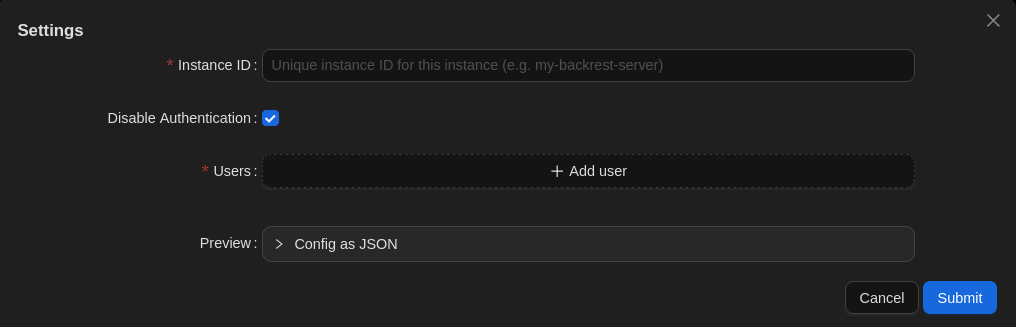
  2. You should then see the following pop-up dialog box: Getting Started pop-up dialog box Getting Started pop-up dialog box
  3. Enter an Instance ID: The instance ID is a unique identifier for your Backrest instance. This is used to tag snapshots created by Backrest so that you can distinguish them from snapshots created by other instances. This is useful if you have multiple Backrest instances backing up to the same repo. It cannot be changed after initial configuration as it is stored in your snapshots. Choose a value carefully.
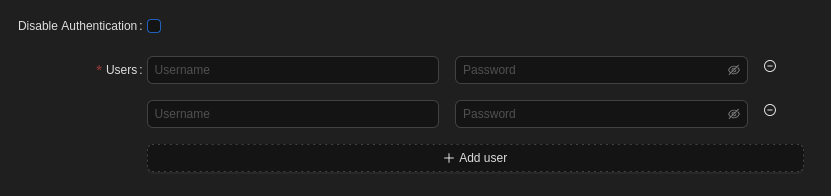
  4. Disable Authentication: If you’d like all users of this device administer your configuration (e.g. you’re the only user), you can leave this box checked because it can only be accessed from the device itself. Otherwise (e.g. you have other users that should not be able to alter settings), uncheck it.
  5. Users: Add credentials (username & password) for each administrator, including yourself, if you enabled authentication. Add Users section of form Add Users section of form
  6. Hit the Submit button to save the above settings.
Dec 11, 2024

Repository Instance Configuration

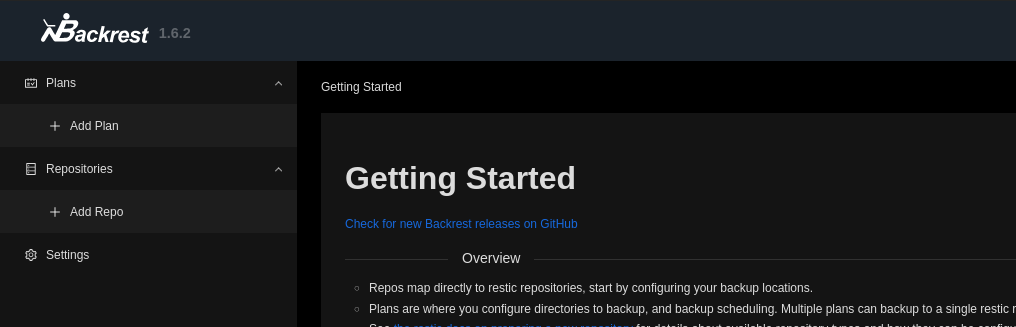
On the left sidebar, click on Repositories -> Add Repo. Repositories: Add Repo Repositories: Add Repo

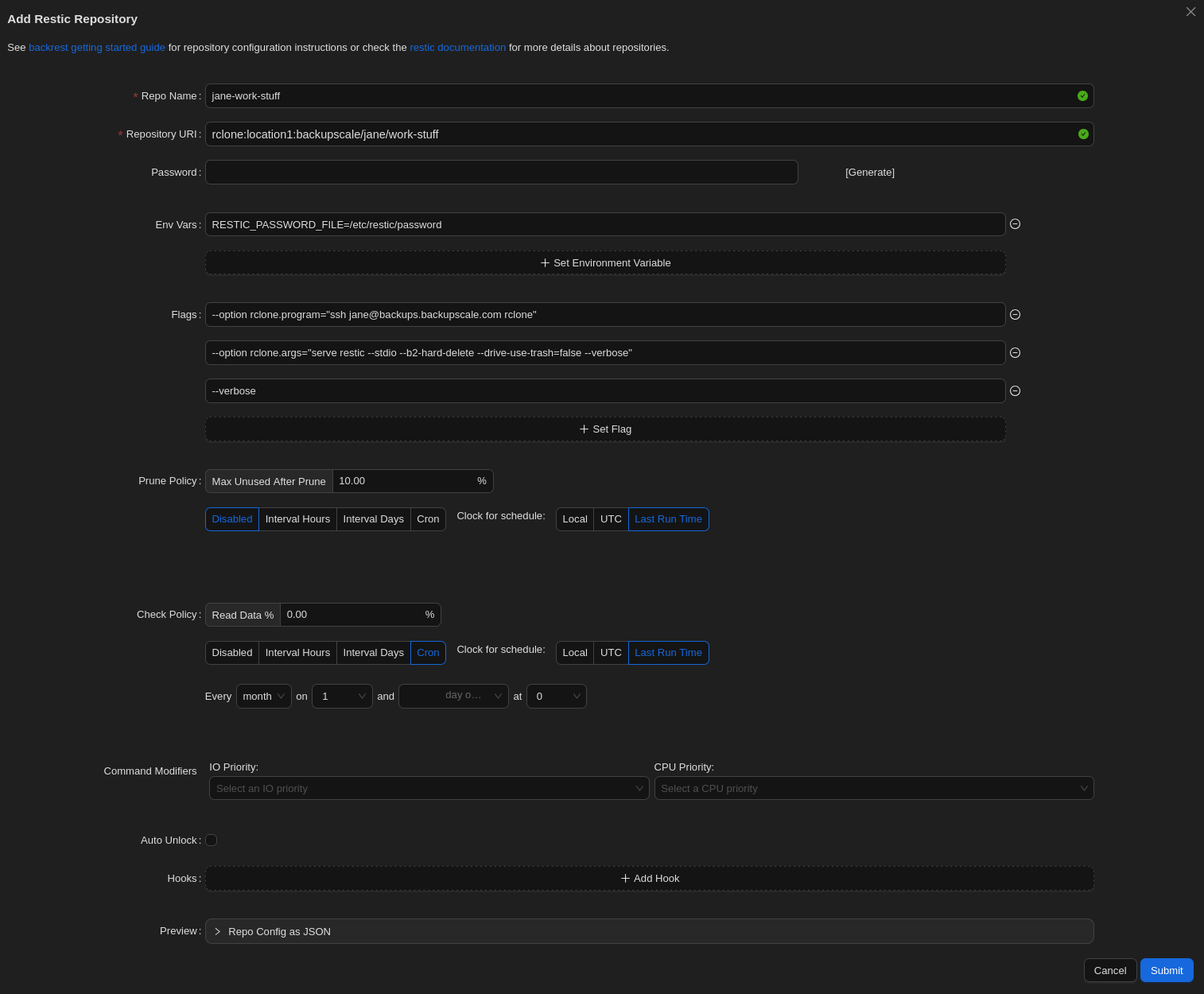
Then, fill out the form. There’s an image of a filled form following the steps below.

Form Steps

  1. Repo Name: Enter whatever you’d like here; this is for identifying your repository in this user interface.
  2. Repository URI: Enter the following, with the region (only europe is supported currently), your username for USER_NAME, and the ID you’d like for your repository for REPOSITORY_ID (but note the Caution below).
    • rclone:europe:backupscale/USER_NAME/REPOSITORY_ID
Caution

Repository IDs must be between 3 and 63 characters (inclusive). They can contain lowercase letters, numbers and dashes (but not at the beginning or end).

  1. Password: Leave this field blank. We don’t need to generate one here because we’ll be using the passphrase we generated during the initial set-up.
  2. Env Vars: Enter the following to set up your environment with your passphrase.
    • RESTIC_PASSWORD_FILE=/etc/restic/password
  3. Flags: Here are the settings for working with BackUpScale repositories. Again, replace User_NAME with your username.
    • --option rclone.program="ssh USER_NAME@backups.backupscale.com rclone"
    • --option rclone.args="serve restic --stdio --b2-hard-delete --drive-use-trash=false --verbose"
    • --verbose
Info

Rclone is the tool we use to marshal your encrypted files to and from our cloud storage service.

  1. Prune Policy: Hit the Disabled button. This option is for removing no-longer-needed data from your repository, but we can’t automate this here because your repositories are normally in append-only mode to enhance security. Therefore, data cannot be removed with this method. To do so, see Removing Snapshots for information on how to do it elsewhere.
  2. Check Policy: This isn’t required, but if you’d like to verify the integrity of your repository periodically, you can enable this by setting it to something higher than 0%. However, this this is a resource-intensive operation so we don’t recommend checking more than 10% at once.
  3. Command Modifiers: Feel free to set these to something other than the defaults to match your resource management requirements.
  4. Auto Unlock: Leave this disabled.
Caution

Enabling this could corrupt your backup repository. Leave it off unless you really know what you’re doing.

  1. Hooks: You can hook into operations run here. See Hook Details for more information.
  2. Preview: This is simply for reviewing how the the above configuration will be stored, which can be helpful for automation.
  3. Hit the Submit button to save the form.

Example of a filled form

Exmaple repository configuration Exmaple repository configuration

Dec 11, 2024

Repository Scheduling Configuration

  1. Plan Name: Enter whatever you’d like here; this is for identifying your plan in this user interface.
  2. Repository: Select one of the repositories you created in the previous section.
  3. Paths: Enter the paths on your device that you’d like backed up.
  4. Excludes: Case-sensitive paths to exclude from your backups that are contained within the above paths. See the Restic documentation for details.
  5. Excludes (Case Insensitive): Same as above, but the paths aren’t case sensitive. See the Restic documentation for details.
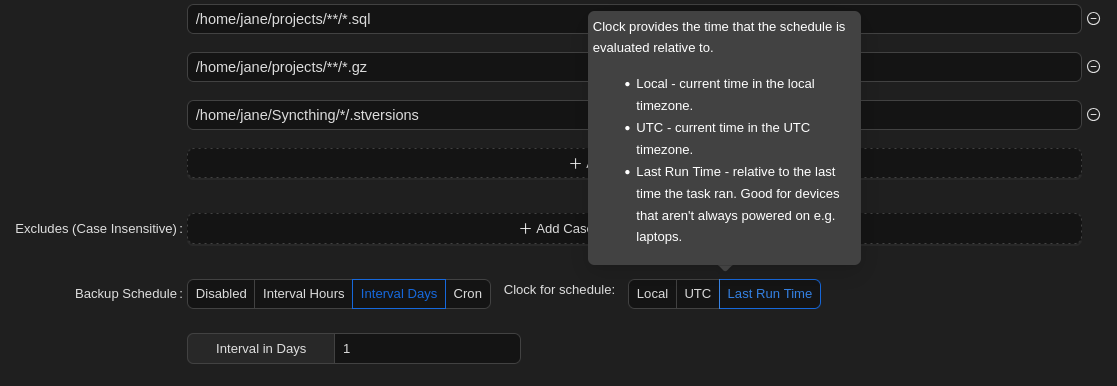
  6. Backup Schedule: The backup schedule. You can hover over each option for in-line help. Backup schedule in-line help Backup schedule in-line help
  7. Backup Flags: Set any options you’d like to add to the backup command. For example, we recommend not creating new snapshots if the files haven’t changed:
    • --skip-if-unchanged
  8. Retention Policy: Set this to None because we’ll normally be working with append-only repositories, which don’t allow marking snapshot removals. Instead, we’ll handle this via out-of-band operations, where we temporarily disable append-only mode.
  9. Hooks: You can hook into operations run here. See Hook Details for more information.
  10. Preview: This is simply for reviewing how the the above configuration will be stored, which can be helpful for automation.
  11. Hit the Submit button to save the form.
  12. After your Plan has been created, while on the Plan, hit the Backup Now button to start your first backup and test you configuration.
Note

If you’re backing up lots of data (either lots of files and/or big files), it may take a while for your backup task to complete. After your first backup, however, there will be fewer changes to upload so backup operations will be quicker.

Dec 11, 2024

Subsections of Ongoing Operations

Removing Snapshots

Background

Over time, backup repositories can become large. Because backup space isn’t free, and unnecessarily large repositories can become unwieldy, it’s important to remove snapshots to prevent this from happening.

From the Restic documentation:

This can be done either manually (by specifying a snapshot ID to remove) or by using a policy that describes which snapshots to forget. For all remove operations, two commands need to be called in sequence: forget to remove snapshots, and prune to remove the remaining data that was referenced only by the removed snapshots. The latter can be automated with the --prune option of forget, which runs prune automatically if any snapshots were actually removed.

Note

Pruning snapshots can be a time-consuming process, depending on the number of snapshots and data to process. During a prune operation, the repository is locked and backups cannot be completed. Please plan your pruning so that there’s time to complete it and it doesn’t interfere with regular backup runs.

Constraints

Because BackUpScale prioritizes security, repositories generally operate in append-only mode (backup snapshots can be written, but repository data cannot be deleted), these operations cannot typically be run on their own.

The high-level process is thus:

  1. Disable append-only mode.
  2. Remove snapshots.
  3. Re-enable append-only mode.
Warning

Do not forget to re-enable append-only mode. Doing so will make your backup repositories vulnerable to ransomware attacks: If any of your devices become compromised, attackers can delete all of your backups from those devices. Keep these maintenance windows as short as possible.

Info

While in the early discussion stages, we’re planning to add a per-key overrides feature that will allow specific keys to force append-only mode or not. This will allow you to maintain a device in a more secure environment whose key will allow it to automatically run these maintenance operations without manual intervention. While this strategy still has its risks, it provides another option.

Process

Disable append-only mode

  1. Log in to the dashboard site.
  2. Navigate to your account settings.
  3. Check the Disable append-only mode? box.
  4. Save your settings.
  5. Wait several minutes for your account to be updated.
  6. You should receive an e-mail reminding you that append-only mode is disabled.

Remove snapshots

  1. Log into the Backrest console from your device (http://localhost:9898/ if local).
  2. From the left sidebar, navigate to Repositories -> your repository.
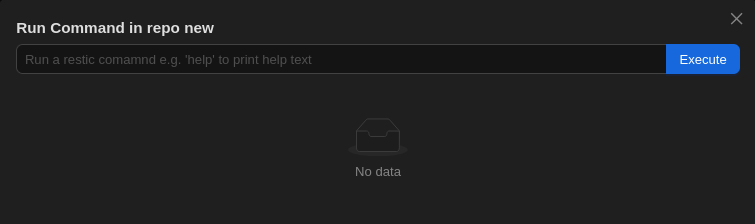
  3. Hit the Run Command button. Run command dialog box Run command dialog box
  4. Run a command like the following example to enforce your chosen retention policy (see the Restic documentation for details on how to modify for your requirements). Snapshots that aren’t retained will be deleted.
    • forget --dry-run --keep-within 1m --keep-within-daily 7d --keep-within-weekly 1m --keep-within-monthly 1y --keep-within-yearly 75y --prune
Note

This command won’t actually delete any data because of the --dry-run option. When you’re satisfied with what it would do, you can rerun that command without that option, which will actually mark the data for deletion, and then delete it (because of --prune).

  1. Hit the Index Snapshots button to notify the Backrest console about your changes.

Re-enable append-only mode

  1. Log in to the dashboard site.
  2. Navigate to your account settings.
  3. Uncheck the Disable append-only mode? box.
  4. Save your settings.
  5. Wait several minutes for your account to be updated.
  6. You can then delete the reminder e-mail from your inbox!
Dec 11, 2024

Restoring from Backups

  1. Log into the Backrest console from your device (http://localhost:9898/ if local).
  2. From the left sidebar, navigate to Plans -> your plan.
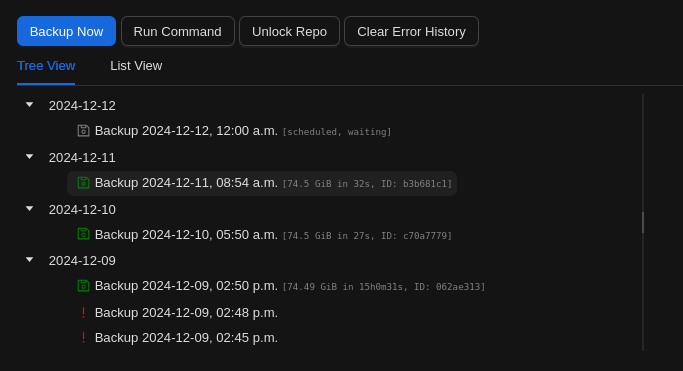
  3. Under the Tree View of snapshots, select an appropriate backup to restore from, and click on it. Tree view of snapshots Tree view of snapshots
Tip

Try to think of the most recent time before your file or folder was corrupted or missing. If you realize afterwards that you were incorrect, try an earlier one.

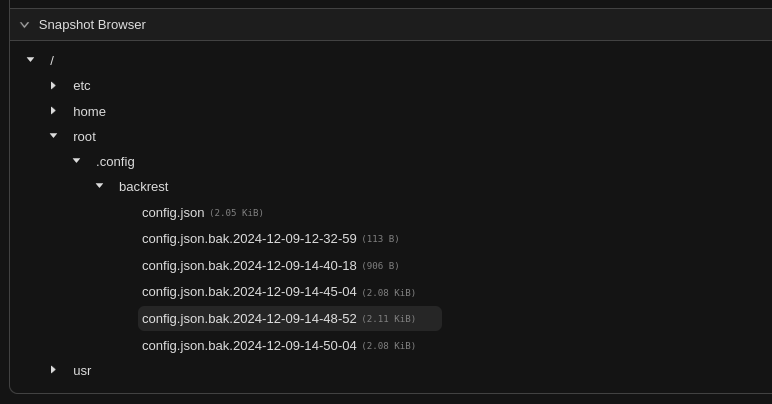
  1. In the right-side pane, click on Snapshot Browser, which will show the file tree.
  2. Click on the arrow to the left of the displayed directory/folder to expand it, and then keep doing so down the tree until you find the item you’d like to restore. Snapshot browser Snapshot browser
  3. Hover over it, all way to the right, until you’re over the little menu icon.
  4. You should then see a menu with options Info and Restore to path.
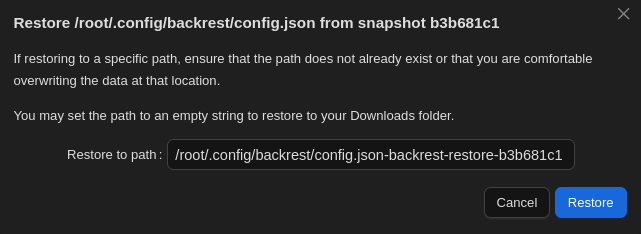
  5. Click on Restore to path. You should then see the following pop-up. Pop-up prompting for the path where file should be restored Pop-up prompting for the path where file should be restored
  6. Enter the path where you’d like the item restored. The original location should be the default, you can enter another location, or you can leave the field blank to place it in your Downloads folder.
Caution

The item being restored will overwrite whatever you have in the chosen location with the same name. If you’d like to keep that copy, place the item elsewhere.

  1. Review the item locally. If it doesn’t contain what you want, try again with another snapshot that will likely contain what you’re looking for.
Dec 11, 2024

Subsections of Reference Materials

Installation Software

This is all of the software that would typically get installed on you backup sources. It’s open source, exclusively, so it can be reviewed and audited.

Ansible

BackUpScale Ansible Playbook & Role

Backrest

Restic

Dec 11, 2024

Explanations

This is where we will put extra information, our considerations and architectural decisions. Why did we pick a particular sofware for a piece of this system?

Let us know if there’s anything you’d like us to add here.

  1. Frequently Asked Questions (FAQ)
Sep 27, 2025

Subsections of Explanations

Frequently Asked Questions

Why am I getting an Operation error when trying to create a backup repository?

If you see something like this:

Operation error
[unknown] failed to init repo: init failed: command “/root/.local/share/backrest/restic init –json –option rclone.program=ssh jane@backups.backupscale…” failed: command “/root/. local/share/backrest/restic init –json –option rclone.program=ssh jane@backups.backupscale…” failed: exit status 1
Output:
Fatal: create repository at rclone:europe:backupscalee/jane/repository1 failed: Fatal: unable to open repository at rclone:europe:backupscalee/jane/repository1: error talking HTTP to rclone: signal: killed

It probably means that your requested operation was invalid.

Repository paths must be something like europe:backupscale/jane/REPOSITORY_NAME, where REPOSITORY_NAME consists of lowercase letters, numbers or dashes (but not at the beginning or end), and the maximum length is 63 characters.

To confirm, you can log into your dashboard account, and review your request logs. There will be request-specific information posted there.

In this example, backupscalee was spelled wrong, which is an invalid name for the storage container.

Why am I getting signal: killed when trying to run a backup?

If you see something like this:

Failed to schedule backup: [unknown] failed to get snapshots for plan: get snapshots for plan “my-backup-plan”: command “/root/.local/share/backrest/restic snapshots –json –option rclone.program=ssh jane@backups.backup…” failed: exit status 1 Output: Fatal: unable to open repository at rclone:europe:backupscale/jane/repository1: error talking HTTP to rclone: signal: killed

It probably means that your account has been disabled. To confirm, you can log into your dashboard account, and review your request logs. There will be request-specific information posted there.

If you account has indeed been disabled, check the billing for your subscription plan, and ensure it’s up-to-date.

Oct 4, 2025

Tutorials

We don’t have any tutorials yet. If you’d like to add one, or have any suggestions, please let us know.